The Surface series from Microsoft changed the game completely, bringing new and much-needed features with extreme portability to the market. Similarly, Windows 10 brought with it a slew of new and improved tools with it. What do you get when you combine the two? A productivity and creativity powerhouse. Needless to say, sketch artists, painters, and those who like to draw are happy. Whether you use a Surface Tablet, a normal PC with a Graphics, or simply a keyboard and a mouse, there are plenty of drawing apps for Windows 10, both free and paid.
Let’s take a look at some drawing and sketching apps. See which one fits your requirements and offer additional features that you may need.
Also Read: Duet Display vs. EasyCanvas: Which Is Betters for Using iPad Pro as Drawing Tablet for PC
Before We Begin
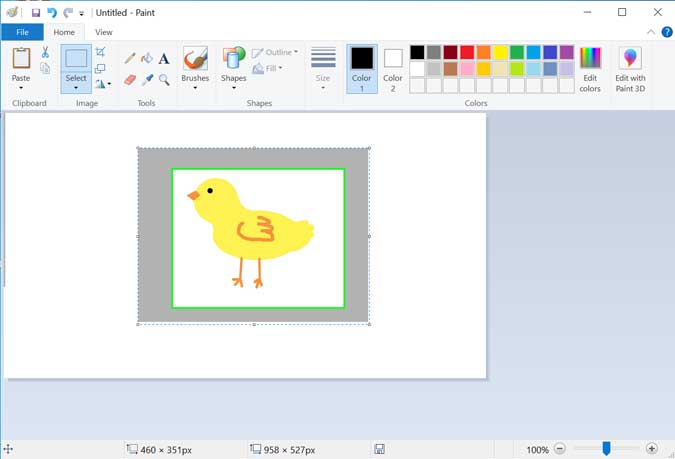
Even if you consider MS Paint a kids’ app, you have to agree it’s one of the best apps that most of us grew up learning to draw. There are plenty of users that use MS Paint as their primary drawing app, especially if you are looking for a Windows paint app for kids. The Paint app has a set of some basic shapes, a few tools and brushes to help you get started, and a standard color wheel. It’s enough to get you started and the list below has advanced apps that offer a better experience.
MS Paint comes pre-installed with every Windows version
1. Paint 3D
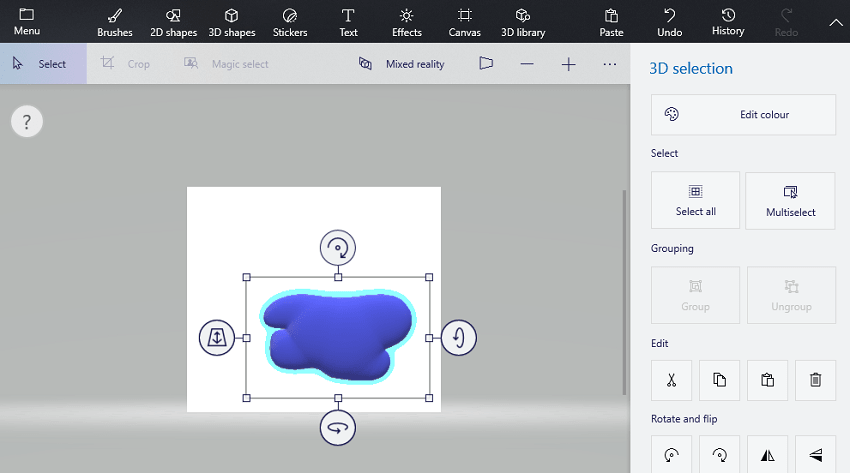
Paint 3D takes things to the next level.
Pre-installed with Windows 10 and free, Paint 3D comes with a number of new brushes, effects, and tools. Draw or sketch any shape using a brush or finger/pencil and it will automatically be converted into a 3D model. Any shape that comes to your mind, like a cloud in my case. It comes with a built-in library to tap into, but you can always download more from the web. You can also cut out shapes from existing pictures and draw over it.
Key Features
- Brushes, text, stickers,
- 2D, automatic 3D shapes
- 3D library
- Mixed reality
- Pre-installed and free
Download Paint 3D: Windows (Free)
Also Read: 14 Best Drawing Games for Android
2. Zen: Coloring Book for Adults
I admit it’s not a drawing app per se, but it’s a very well made app that perfectly simulates the coloring book that I used as a child. The app has more than 250 designs that offer intricate and complex patterns that you can pick and start coloring. You can use a brush tool to color in or as I like to do, use the fill bucket to fill an entire area to fill in the color. The color wheel on the side gives you quick access to a palette and as the name suggests, it is very relaxing. You can get the app from the Microsoft App Store for free.
Key Features
- Quick Acess to Color Palette
- Intricate Designs
- Intuitive Tools
- Clutter-free workspace
Download Zen Coloring Book: Windows (free)

Also Read: There Is No Microsoft Paint App for Android, Try These 6 Alternatives
3. Pix 2D
I’m a sucker for pixel art and sprites that I recently covered the best pixel art apps for most devices. If you wish to create pixel art then Pix 2D is one of the best apps to start with. The app gives you a grid workspace by default where you can start coloring pixels with the unique square brush that precisely measure to a singly pixel. The choice of brushes is limited but you won’t need minute details with pixel art anyway. Other than that, you get a standard color wheel, eraser, selection tool, and fill bucket tool.
Not just that, the app also lets you animate your pixel art to create sprites that you can use anywhere. The app is free and you can get it from Microsoft Store.
Download Pix 2D: Windows (free)

4. Sketchable
If you want a professional sketching and drawing apps for Windows 10 that was purpose-built for sketching in mind, you will have to move to paid alternatives like Sketchable. It acts as a digital notebook cum canvas complete with page flips, and powerful tools that are easily accessible in menus. A joy to use on Surface Pro laptops and computers (using drawing tablets) alike.
Some important drawing tools including stencils, layers, color picker, masks, and symmetry. These tools open up new possibilities that were previously not possible with apps like GIMP and Paint 3D. Sketchable has a free version but that is very limited. Most tools are locked for the pro version which is available for just $24.99. A small price even if you are a hobbyist.
Sketchable still misses some tools that you will find in Photoshop but is also a lot easier to learn and use, is less resource-intensive, and a lot cheaper.
Key Features
- Brushes, text
- 2D, masks
- Layers, perspective, pressure dynamic,
- Stencil, symmetry
- Customize UI
- Sketchbooks
Download Sketchable: Windows (Freemium)

Also Read: Get Microsoft Paint for Mac With These 5 Apps
5. SketchBook (Autodesk)
SketchBook comes from the house of Autodesk, creators of some really cool products and creative tools. Available on all platforms including smartphones, SketchBook allows you to start drawing the moment you are hit with inspiration, irrespective of where you are or what device you are using.
SketchBook comes with so many tools that you will be spoilt for choice. There are over 140 types of brushes alone to choose from, color gamut, layers, masks, and stencils. Can’t draw straight or curved lines? Use predictive stroke to turn it into perfection. Even when working with layers and blending, there are close to 15 tools I could count. That’s a lot of options, maybe too much.
SketchBook is more suitable for pros who do this for a living. Too many choices can confuse beginners and hobbyists. Plus, it comes with a subscription plan that begins at $4.99 per month.
Pros:
- 140+ Brushes
- 2D, masks
- Layers, perspective, pressure dynamic,
- Stencil, symmetry
- Customize UI
- Sketchbooks
- Cross-platform
Download SketchBook: Windows (Paid)

Also Read: 6 Best Thumbnail Maker Apps for Android Smartphones
6. MediBang Paint
Are you into drawing cartoons and manga characters? Maybe anime? MediBang is a popular and free tool that’s available on all popular platforms for desktop and smartphones. This drawing app for Windows 10 comes with over 50 brushes, layers, pressure-sensitive input, and an extensive resource library.
It’s an amazing tool for manga artists and is very popular among them too. Not only that, but there is also a very active community who have developed their own brushes that you can import into the app. There is a dedicated comic panel that you can use to create comic art and write text on your art. Makes writing comic books that much easier.
Pros:
- 50+ Brushes
- 2D, masks
- Layers, perspective, pressure dynamic,
- Resource library
- Stencil, symmetry
- Comic art, fonts, panels,
- Cross-platform
Download MediBang: Windows (Free)
7. Krita
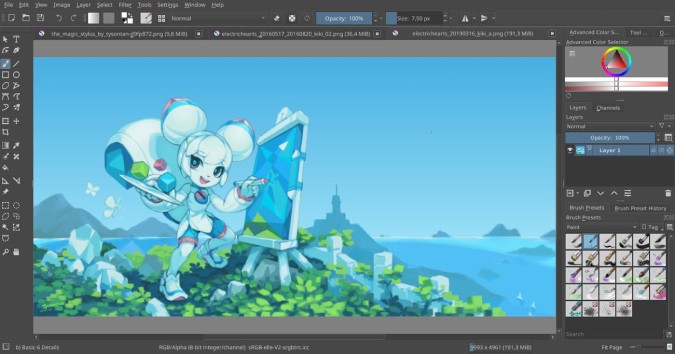
Krita is an open-source desktop painting application available for Windows, Linux, and Mac. Although the Windows Store application is paid at around $10, you can download the nightly build for free from this link. Apart from drawing toons and sketches, there’s a wrap-around mode that lets you form seamless textures. Additionally, Krita supports PSD files which means you can import your photoshop brushes. This is a lot helpful when you want to download brushes from the Internet because most of them are available only from Photoshop.
Krita is a part of the KDE open-source project which is a huge community. Hence, you’ll find a lot of tutorials and documentation on the official site and over the Internet.
Pros:
- Customizable brush engines
- Organize brushes
- Support for PSD files and option to import Photoshop brushes
- Support for pen shortcuts and pen-pressure sensitivity
- Stabilizer for free-hand inking
Download Krita: Windows (Free | Paid)
Best Drawing Apps for Windows 10
Where you are a hobbyist or a pro, looking to draw regular objects or create new manga and anime characters, there is a drawing app you can use on your Windows 10 computer. You just have to choose the right tool for the job. That’s why I have reviewed a range of drawing tools focused on different types of artists. Some of them are free and even open-source while others are paid. Choose your tool and get creative.
Also Read: Best Sketch Apps for iOS & Android
