I recently switched to Edge Chromium and found it even better than Google Chrome. There are many features like Reading mode, PDF reader, etc and also consumes less RAM comparing to Chrome. Nonetheless, there are few problems in the Edge Chromium as well and one of that is the default search engine. It is set to Bing. In this article, I’ll show you how to change the default search engine on Edge Chromium. Let’s begin.
Just like Chrome, you can start typing your query in the URL bar, hit send, and Edge Chromium will search the internet. The other way to search directly from Edge Chromium is to type the query in the New tab. Both of these are set to Bing by default and we’ll change that.
1. Changing the Search engine on the URL bar
To change the search engine on the address bar, click the three-dot menu and select Settings.
Related: 9 Best Microsoft Edge Chromium Tips and Tricks for Power Users

Under the option “Privacy and Services”, find and click “Address Bar” to open the options.

Click the drop-down menu next to the “Search engine used in the address bar” option and set it to “Google”.
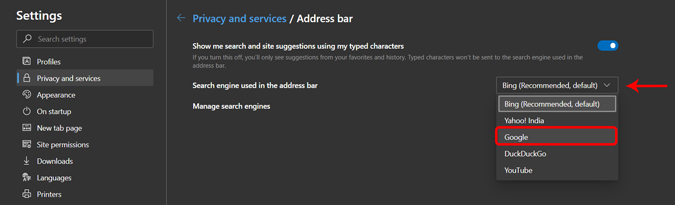
If that option is not available, click on “Manage search engines” and Click Add to add Google. Type “Google” under Search engine, “google.com” under the Keyword section, and paste the following URL string in the URL box.
{google:baseURL}search?q=%s&{google:RLZ}{google:originalQueryForSuggestion}{google:assistedQueryStats}{google:searchFieldtrialParameter}{google:iOSSearchLanguage}{google:searchClient}{google:sourceId}{google:contextualSearchVersion}ie={inputEncoding} 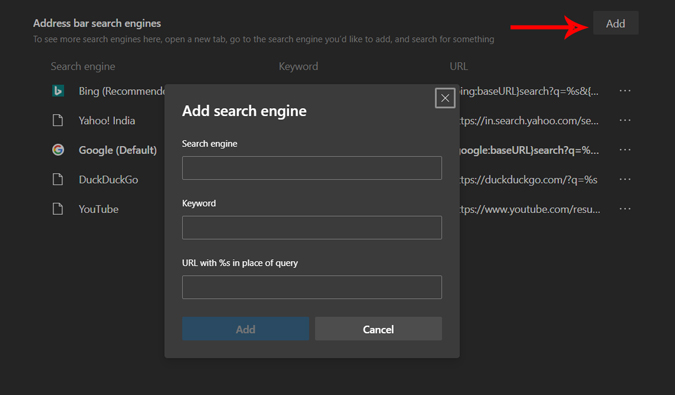
Once you enter all the details correctly, it should be populated and look something like the image below. Click Save to make the changes.

Now, the default search engine is Google. Anything you type in the address bar will be searched using Google. However, the home page and the new tab page will still use Bing. We’ll change it next.
2. Change the Search Engine on the new tab page
There are 2 ways to change the search engine on the Home page. Both of these methods are third-party extensions that redirect your queries to Google. I’ll list both Extensions and what features they offer.
Changing the search engine on the New Tab with Chrome Extension
This Chrome extension works like this, it intercepts the queries you type on the new tab or home page bar and when you hit enter, it redirects the query to Google. To enable this extension, open the three-dot menu and click on Extensions.
Read: How to Get Samsung’s Edge Lighting on any Android Phone
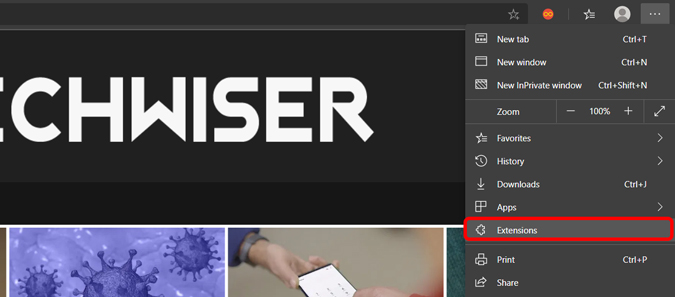
Enable the option “Allow Extensions from other stores” from the bottom left of the page.

Now, install this Google Chrome Extension called “New Tab Redirect” with this link and “Add to Chrome”.

Once the extension is installed, click the extension icon and you will be redirected to the configuration page. Click “Grant management permissions” to allow the extension to function properly.
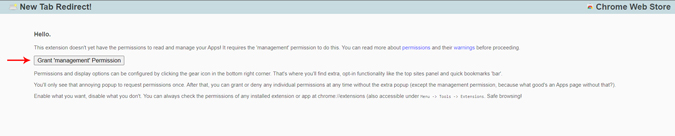 Now, we will set Google as the default search engine. Click the New Tab Redirect extension icon and select extension options.
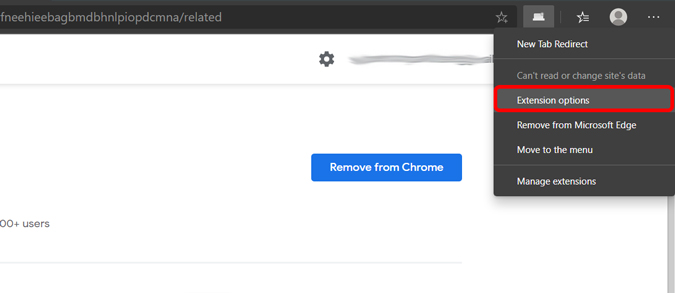
Add this URL below in the “Redirect URL” option and click Save. That’s all you need to do and whenever you type a query on the Home page or on a new tab, it will open the Google page instead of Bing. Neat.
https://www.google.com/

Customize the homepage with an Extension
The second extension is more powerful as it customizes the home page of Edge Chromium completely. Install Google Chrome Extension called “Infinity New Tab” by clicking this link and add it to Chrome.

That’s it, your homepage and the New tab page are completely new. Now, we just need to change the default search engine to Google. Click the search icon on the home page and click the add icon.

select Google and click the + button to add it.
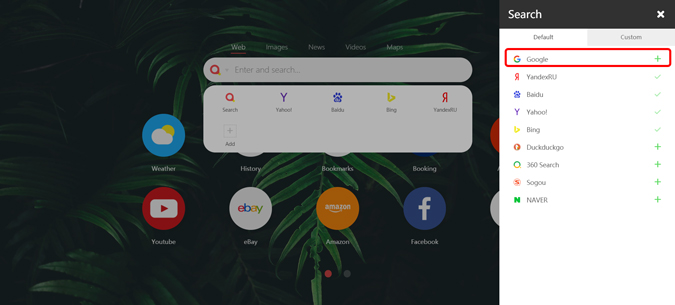
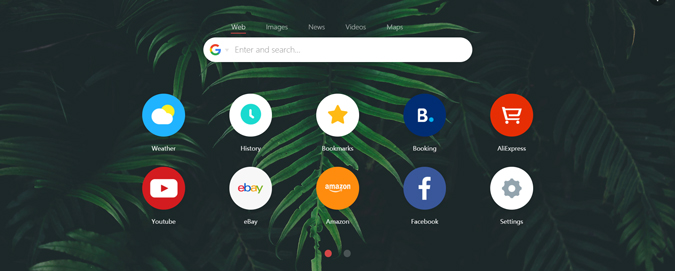
You can click the icon next to the search bar to select any of the added search engines. In our case, select Google option and it will your default.
Wrapping up
As of now, I am sticking with Infinity New Tab but we also have other options like Momentum, Toby, etc. But they don’t have any kind of search engine but offer different features like bookmark manager and clean home screen interface, etc. What do you think? Is setting Google as the default search engine worth it? Let me know in the comments below.
Must Read: 15+ Best Microsoft Edge Extensions Inspired From Chrome (2020)