The first thing I noticed moving from Pixel to Samsung is the UI and how different it is from the stock Android. While I like the fact that I can use all the system apps and quick settings with one hand in One UI. But I prefer Google’s UI choices in Pixel than Samsung’s cartoonish big icons. Sure, I can just change the Icon pack, but I had a few more problems with the finder search, clutter notification tray and Bixby home that replaced Google Feed, etc.
As it is an Android, we have a lot of options to change the UI to our liking. And here is the best way to do it.
Read: Samsung One UI Tips, Tricks, and Hidden features
How to Make Samsung Stock Android
1. Home Screen
Launchers are the best way to change the Home Screen. As I am looking to make it like a Stock Android, here are few best launchers I found:- Pixel Launcher, Lawnchair Launcher, Rootless Launcher.
Pixel Launcher is undoubtedly the best launcher you can choose if you are willing to go for a stock Android and it is made by Google itself. But Pixel Launcher is not available on the Playstore as it is not compatible with your Samsung Phone, So you need to download the apk file and sideload it. I tried it and it works fine.
In case, you don’t want to download the app which is not from the Play Store, Rootless Launcher can be the second-best choice. But Lawnchair launcher is the one, I use and recommend, which looks almost like pixel and also very smooth. You can make your choice, as I prefer Lawnchair, I am going with it.
1. Download the Lawnchair launcher and open it.
2. After giving Permissions, long press on the home screen and press ‘Home Settings’.
3. Here you can find a lot of settings to change, you can go through one after another and change according to your liking.

4. Here are few settings, you should definitely check:-
- ‘At a Glance’ Widget
- Google Feed settings, that you can find in the Plugins section. It recommends you to download Lawnfeed app for that, you need to download and activate Google App Feed. So that you can get Google Feed just like on the Pixel phones.
- Theme option, to change the look and colors.
- Dock options.
5. Finally, make the Lawnchair launcher as a default home screen. You can select Lawnchair and click always by going to the home screen or you can change it in system settings > Apps > three-dot menu > default apps > home screen and change it Lawnchair.
By now you can find a change in home screen and app drawer. Your search has been changed from the finder search to Google search. And also you have Google Feed instead of Bixby Home.
Now you can change the wallpaper, which can make the look more complete. Download Wallpapers by Google and use the wallpaper of your desired. You can go with Earth wallpapers in it, which Google normally goes with.
And there is one more change, which is Icon Pack. You can download the Pixel icon pack from the Play Store and apply it to the launcher. To apply, after downloading, go to the launcher home settings, click on theme, Icon packs and drag Pixel Icon Pack to top of the System Icons. Come back to theme settings and then click on Icon Shape and select circle.
With that, you can make your home screen as a Pixel Stock Android’s home screen. Here is the home screen before and after.

You can add widgets, apps, etc to make it more engaged.
2. Notifications panel
You have changed the Home Panel, but still everything except that remains the same. The most important of them is the notifications panel.
Actually, we can easily change that with the help of a single app called Power Shade.
1. Download the Power Shade app and open it.
2. Give permissions and change the settings in the Layout and color sections.
3. You can go to colors option and change the background color and Notifications background color to black if you want to go for a dark theme.

4. All these settings are simple to understand and you can easily tweak them out.
5. These changes don’t just apply to notifications but also the quick setting panel.

3. Keyboard
By default, we get a Samsung Keyboard which is really good. But I just love the Gboard and its functionality. Most importantly, the speak-to-type feature works a lot better on the Gboard. And also the word suggestions. To replace the Samsung keyboard with Gboard, follow the steps.
1. Download the Gborad and open it.
2. Cive permissions and set it as default. That’s it.
3. It will give you a few setting options, you can change them according to you in case you wanted.

And your Samsung Keyboard is replaced by Gboard.

4. Remapping Bixby Button
On the new versions of Samsung phones (like the Note 10), Samsung lets you remap Bixby button. But you still can’t do it in the older models. Thankfully, you can easily remap them by using a single app called Bxactions.
1. Download the Bxactions app from the Play store & open it.
2. Give the permissions and you can change settings like clicking and double-clicking the Bixby button. But it doesn’t work for long-pressing and lock screen settings.
3. To change even them, you need to open developer settings which you can access by tapping the built number 7 times in the about section.
4. Turn on USB debugging in the developer settings and connect the phone to a computer using the USB cable.
5. On the PC, open the file manager > your phone store, and you can find the exe file called ‘ Activate Control Mode ‘.
6. Open, install and run it.
7. Now you can find the options to change everything on the app. Remove the USB and complete your settings.
You can remap the single press, double press, long press, and double press and hold and you can even give different settings when it is in the lock screen.

You can remap them to open Google Assistant, turn on the flashlight, take a screenshot or open any app. As an added bonus, you can even remap volume buttons in this app, but I think they are fine enough.
5. System Apps
Though we have changed the entire home screen, we still have many Samsung apps which we can easily replace them with the Google apps.
Here are the apps that you can change from Samsung Apps to Google Apps.
- Calendar. (Google Calendar)
- Calculator (Google Calculator)
- Clock (Google Clock)
- Browser ( Chrome )
- Contacts (Google Contacts)
- Dialer
You can find all the apps in the Playstore except the dialer app. Which we can download the apk and install it. It may or may not support your device. In that case, you can just leave it to Samsung, which is the best option. Or you might be using Truecaller dialer anyway.
Later you need to go to system settings > Apps > three-dot menu > default apps and change the Google apps to default apps.

You can even go forward and change the music and gallery apps with Google Play Music and Google Photos apps.
6. Removing Bloatware
Samsung Phones come with a lot of bloatware which we don’t use. You can uninstall some of them, but not every app. I still don’t understand why I can’t even delete Microsoft Office apps which I don’t use on the phone and they take a lot of space. Moreover, Facebook is an app that we can’t uninstall.
And also we have just replaced the system apps with Google apps and made the Samsung bloatware list even bigger.
Here is how you can disable them.
1. Download Package Disabler Pro which costs $3.56 & install it. This app can not uninstall the apps but can disable them.
2. By purchasing, you will get the activation code in the email register with Google Play store. Open the app and place the activation code and press OK.
3. And wait for a few minutes for the content to appear. If it asked for retry, press retry and wait a bit longer. This app has a few starting issues but works great.
4. If you have not received the activation code or facing any problem while opening the app, you can contact packagedisabler@gmail.com for help.
5. Open the app and select the bloatware you wanted to disable. Don’t select anything if you are not sure of it. Just select the apps like calendar, clock, Microsoft office apps, Facebook, Bixby, etc. and click on disable. In case, you have disabled something important, you can open the app select them and click on enable and it solves the problem. But also remember disabling some apps as the Android system may even brick your device.
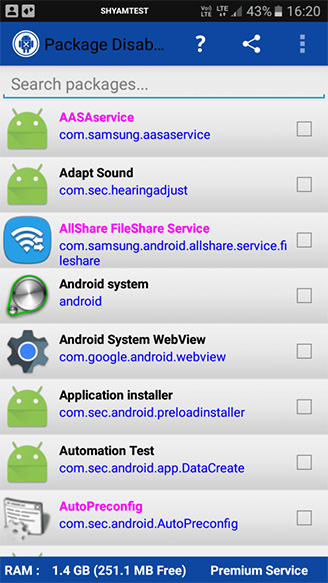
Once disabled, you can just close the app and enjoy the bloatware-free device.
7. Camera
Google’s Gcam is a lot better than the stock camera. It can take photos and videos in better detail, better color, and better exposure.
You can easily download the Gcam from the XDA website by search your phone model name along with it. Also, remember that Gcam in the snapdragon versions are good and better to download and install. Though you can find Gcam for Exynos versions for few models, most of them are buggy and have not produced any better results. To be frank, if you are using the Exynos version, you can entirely leave this camera section.
Moreover, do not disable any camera-related apps in Package disabler pro, it might lead to malfunctioning of the camera. That’s the reason, I have placed the camera part below it without including into system apps.
How to Make Samsung Stock Android
Starting with the Home screen, we have even changed the system apps and removed bloatware too just like the stock Android.
but still, there are few things which we cannot change like settings section, lock screen, recent apps manager. But as it is a Samsung phone, we can theme the Samsung One UI to look like a stock Android. Which changes settings, lock screen, recent apps, etc.