Since you are reading this, it’s safe to assume, you have a Computer, WiFi and few android phones. Right? And every once in a while you need to send files from computer to Android. For me, I usually transfer big videos likes movies or tv shows. But it can be anything.
If this was a few years ago, the only option you would have is to use a USB cable. But not anymore. Now you can easily send or receive files using WiFi. This is quick and easy. All you need is both devices connected under the same WiFi network. This even works with a mobile hotspot.

So which is the best way?
Well, there are several ways to transfer files between Computers and Android. I am sure some of you know are already aware of them. However, my favorite ones are Airdroid and ES file explorer. Why? Well because these are quick, easy and reliable.
There are two cases to consider.
1. Transfer files from Computer to Android
2. Transfer files from Android and Computer
For the first one, we will use Airdroid and for the second we will use ES file explorer. And while we speak of computer, I usually considering PC and Mac. Haven’t tried on Linux, but it should work though.
Side Note: If you don’t want to get 2 separate apps, use only ES file explorer. It can do both i.e. send files between computer and Android and vice versa. Here is a detailed tutorial. However, I introduce Airdroid because it can do much other awesome stuff. We see them later on.
File Transfer with Airdroid
Make sure your computer and Android are under same network.
1. Start by Installing the Airdroid on your android
2. Launch the app and you will see a web address similar to 192.168.1.101:8888, go to your computer and type this on the browser
3. You will see a authentication pop up on your Android. Tap OK, and connection will be establish. Drag and drop the files on to your browser and it will get downloaded to sdcard/Airdroid/upload directory of your Android
See the screenshot below.

File transfer is yet another feature for Airdroid. With it, you can control every aspect of android from your computer. For instance, you can use your android as a surveillance camera, make calls or send messages or even control your Android screen from the computer.
File transfer with ES File Explorer
ES file explorer is the best file manager app. It can do much more than regular file manager app. One of that many feature is file transfer.
Follow this steps
1. If you are not already using ES file explorer, download it from here
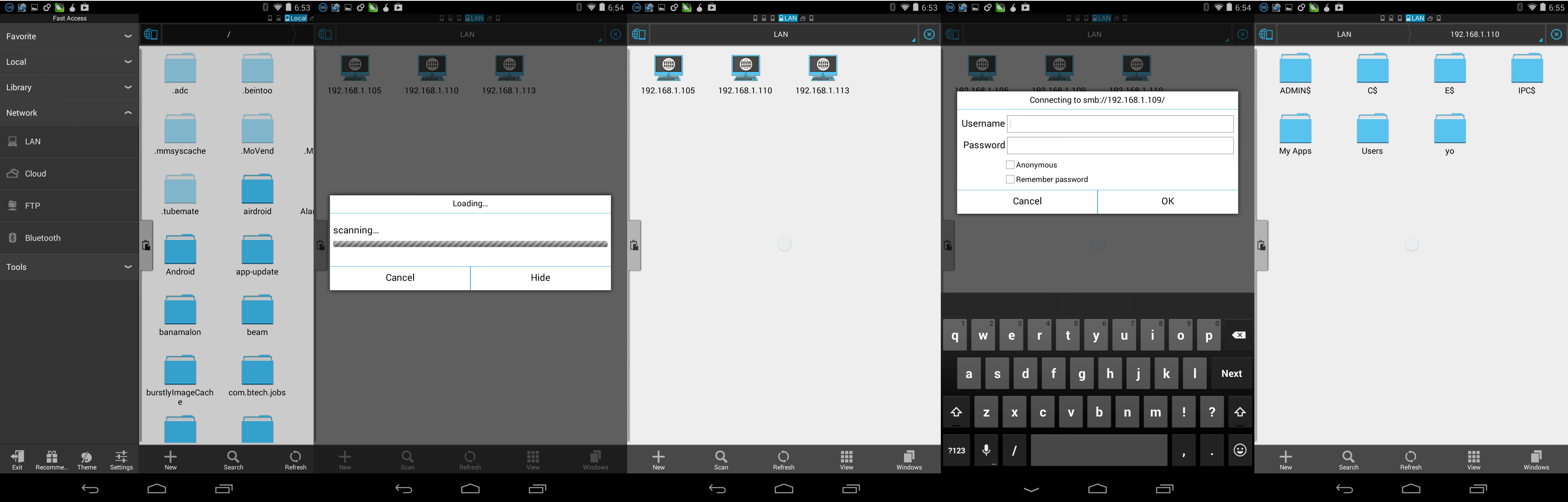
2. Open the app and go to LAN > Network and click on the scan button
3. Once the scanning is over, you will see some IP address. This represent other computers under same network
4. Select your computer and enter the username/password. If you are not sure how to do that, see the video below
5. Once you see the shared folders of your PC, simply copy paste the files.