In our previous article, we covered different ways to mirror your Android screen to any computer, some of them worked with Wi-Fi, others required a USB cable. However, one thing common with all of them was — lag. Yes, no matter what you did, there was a significant delay in the screen mirroring. Enter Scrcpy.
Scrcpy is a new kid on the block that mirrors your Android Screen to your computer in real time with just a USB cable. Not only it just projects the screen on a window console, it also translates your computer’s keyboard and mouse inputs to your phone inputs so that your emulated console can be used a functional device without even touching your phone, Sounds simple enough? Well, it is kind of simple but we have simplified the installation process in a few easy steps which you should follow to view phone screen on PC via USB.
Related: Top 5 Apps to Mirror Android Screen to Another Android
Let’s discuss the required items to power up this system.
- A Windows Computer
- ADB (Android Debug Bridge)
- Scrcpy (aka screen copy)
- An Android Phone with at least Android version 5.0
- A USB cable
I’m going to discuss a brief background of the tools to give you a better insight on what you’re getting your hands on to.
ADB: Android Debug Bridge or ADB is a command line tool used by developers to communicate with an Android device from their computer. You can use it to control your Android over USB from a computer. copy files, debugging and testing apps on your Android devices. A command line tool it isn’t very user-friendly. To solve this hurdle we have the next tool Scrcpy.
Scrcpy: It is an open source emulator tool developed by Genymobile, it emulates the mobile screen on computer desktop in an emulator. It works simply by creating a Java server on the device. The device runs the server and broadcasts the screen on the server using ADB. Scrcpy listens for it through the socket and displays the screen on the console. It transmits the video in H.264 encoding. The desktop console decodes the video.
Must Read: Little Snitch alternatives for Windows and Mac
The installation of the tools does not require expertise and we’ll break down the process to simplify it even more.
View Phone Screen on PC via USB
For Windows:
First thing, we’ll download ADB package for Windows and extract the files to an easy location on your computer, let’s say c:\

We make a new folder ‘adb’ and unzip the contents in c:\adb\
Now we have to download the tool scrcpy which would be used as a server for the video feed from the mobile phone. here’s the link for scrcpy
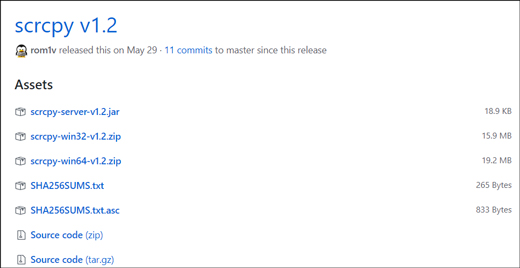
The package is available for 32bit and 64bit computers separately and you can choose according to your computer architecture. When the download finishes unzip scrcpy and paste the extracted files in the same directory where ADB is installed i.e. c:\adb\

Now the next step requires us to open command prompt which we can do by invoking Run dialog and typing ‘cmd’. When you hit enter, Command Prompt pops up.

Change the directory to ADB folder, i.e. c:\adb\

Next, you need to enable developer option on your Android. To do that, go to Settings > About phone > Build number and tap on it 7 times. You’ll see a popup that says, ‘You are now the developer’.
Now, go back to Settings, where you’ll find Developer options on the menu. Next, tap on Developer options > Scroll to USB debugging > Turn USB Debugging ON
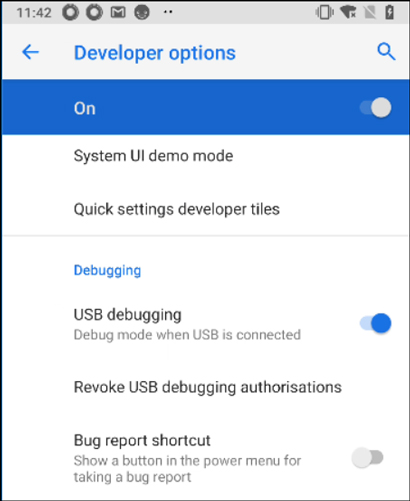
Once, done, connect your USB cable to the Android device and the computer, the device should prompt you to select an option ‘Allow USB debugging’, grant the permission, we’ll need that permission because ADB requires it to remotely run an application on the mobile device.
Now on the Command Prompt, change the directory to ‘adb’ by using the ‘cd’ command and then type the following command ‘adb devices’

If you did everything correctly and followed the steps, then cmd should display your device name or a serial number like above.
Now we’re ready to go and start the console. We’ll just type ‘scrcpy’ and hit enter.
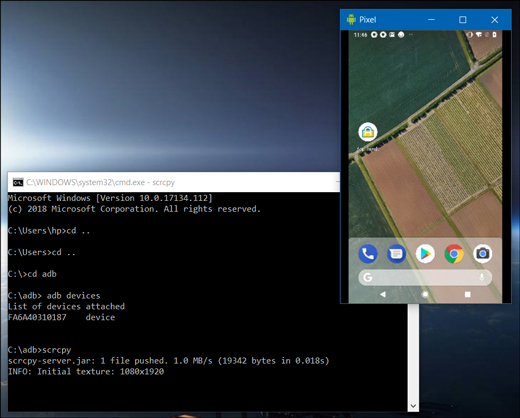
Now the console should start and you’ll get a high-resolution feed of your mobile device without any lag whatsoever. You can now use it to work with your device.
You can use your mouse pointer to control your Android smartphone from your computer. The PC’s keyboard works on your Android too. Overall, from all the methods we have seen to mirror your Android screen to PC, this method has the least amount of lag. However, if you play a video on your Android, only the visual part will be cast to PC, the audio is played only on your Android and not PC.
For Mac and Linux
Though Scrcpy works on Mac and Linux as well, the setup is a little bit more complicated. It requires basic knowledge of terminal commands and build commands. if you wish to use it on a Mac or Linux you can check out the XDA link and follow the steps to run this setup on your Mac and Linux machine. We’ll test it on Mac and Linux and frame an easy tutorial for you in future. Until then you would have to either use a Windows or ‘hit and trial’ it yourself.
Read: Best Writing apps for Android
View Phone Screen on PC via USB
We showed you a simple setup toview phone screen on PC via USB. We tried to keep this tutorial fairly simple and easy to implement. If you follow every step and do everything right you’ll get the console window on your desktop. You can use it for troubleshooting, debugging or even just playing games on your computer. If you face any problems or it doesn’t work for you can just drop a comment and we’ll help you fix it.
