Process-wallpaper is a python script that set the desktop wallpaper to a word cloud of the most resource-hungry processes running on your local system. While this is not the first time we are seeing this, it definitely looks cool.
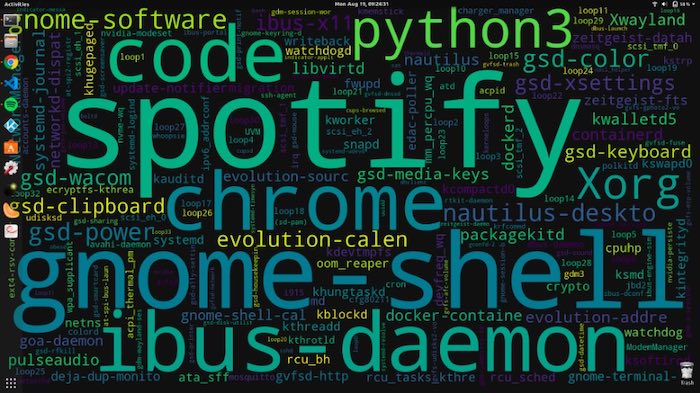
The setting up of the utility is quite simple but it has following dependencies.
- python3
- GSettings (comes preinstalled with GNOME)
- plasmashell (if you are using KDE or Kubuntu)
- feh (for other Linux distros)
Most of these come pre-installed but just in case if you don’t have python, use the following command to install it.
sudo apt install python3.6
After you have installed Python, we would need another tool called pip. pip would be used later to download other Python libraries. To install it, use the following command.
sudo apt install python3-pip
Now we have all the tools in place and we can proceed with downloading the GitHub repository of Process Wallpaper. Use the following command to do the same.
git clone https://github.com/anirudhajith/process-wallpaper.git
After this, use the below-mentioned command to cascade to the downloaded directory
cd process-wallpaper
Now, we need a few more Python libraries to be downloaded within this directory. Run the following command to do that.
pip3 install -r requirements.txt --user

Finally, we can run the setup script now to install and setup our wallpaper.
./setup.sh
This command will take a few minutes to complete. If you have followed the steps carefully and resolved all dependencies, it should successfully execute and change your wallpaper.

At this stage, the process wallpaper is not live which means it won’t update periodically. Hence, for that, we would have to create a job entry in crontab. To do that, we need to open the crontab file by using the following command.
crontab -e

Once the crontab file opens, append the following line at the end of the file and hit Ctrl+X. Next, type “Y” and hit enter twice.
*/5 * * * * cd ~/process-wallpaper && ./updateWallpaper.sh > ~/wallpaper.log 2>&1
This line denotes that the update script will run every 5 mins and update the desktop wallpaper. The logs will be stored in wallpaper.log file in your home directory. In case, you want it to run every 10 minutes, replace the number 5 in the above command by 10

Check the wallpaper.log file if the wallpaper isn’t automatically updating
The bigger the application name appears, the more it is utilizing your memory. Comparatively, smaller texts are utilizing fewer resources. You can visit the GitHub page of process wallpaper and create your own fork. Another interesting wordcloud wallpaper app is Google Trend Wallpaper which automatically posts Google Trending keyword on your wallpaper.
For more queries and issues regarding process wallpaper, let me know in the comments below.
Also Read: Spice Things up With These Dynamic Wallpaper Apps for Windows 10
