In the recent prime sale, I bought an Echo dot and Firestick. And after a bit of tinkering, turns out, you can connect your Echo devices with Fire TV devices. Here’s how.
Read: New Fire TV Stick 4k Doesn’t Support Mirroring: Here’s How To Fix It
Link Echo Dot to Fire Stick
Before you begin, make sure both, your Echo device and Firestick is connected to the same Wi-Fi network and registered under the same Amazon account. Once done, follow the steps.
Step 1: Open the Amazon Alexa app on your phone and go to the menu by tapping on the hamburger icon at the top-left corner.

Read: How to Delete Voice Recordings From Google Assistant and Alexa?
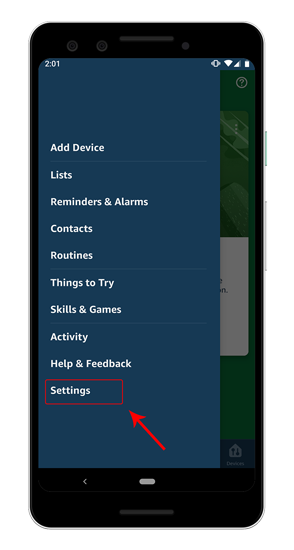
Step 2: From the sliding menu, tap on Settings. In the settings menu, navigate to the “TV & Video” option under Alexa Preferences.

Step 3: In the TV & Video section, you have the option to connect Fire TV & Xbox. Since we need to connect Fire TV Stick, tap on the add button besides Fire TV. On the next page, tap on “Link Your Alexa Device”.


Step 4: After you tap on “Link Your Alexa Device”, the app redirects you to the next page. Your Fire TV Stick will automatically appear on the search page. Tap on it to select it and next tap on the continue button.
In case the Fire TV Stick doesn’t appear, make sure your Fire TV & Echo is registered under the same account and is connected to the same Wi-Fi network.

Step 5: Once you have selected the fire TV, you will be asked about the other Alexa device which you want to connect. In our case, this is the Echo speaker. So, I will tap on the Echo Dot and tap on Link Devices. Next up, will be a confirmation page to display the connected Fire TV Stick name, you can view your device name and then move on to the home page of the app.


Now that you have successfully connected the Fire TV Stick, you can issue commands from the Echo speaker. There are several simple and powerful commands like opening movies, finding movies of a specific actor or control video playback that you can do via the Echo Speaker. Following is a list of must-know Alexa commands to control your Fire TV Stick.
Alexa Commands
1. Hey Alexa, Play “The Office”
As of now this command only works for Prime Video only. Alexa cannot search on other apps like Netflix or YouTube. If you have an Echo Show with a display, you need to specifically mention “Hey Alexa play the office on Fire TV”
2. Hey Alexa, Find Dark Knight Rises
There are times when you don’t know the exact title of the movie but you are aware of the lead name or protagonist. Well, Alexa comes to the rescue and can list down the titles of the particular actor/actress for you. The search results are sourced from Prime.
3. Hey Alexa, Play/Pause/Skip Video
While you are having a good time watching the movie and someone’s on the doorbell. Well, usually you have to reach for the remote to pause the video or just let it play while you attend the person on the door. But, with Echo connected to it, you just have to say: Hey Alexa, pause. While Hey Alexa, play will resume the playback.
Alexa also lets you rewind or fast-forward by a specific time. For example, I can skip the unnecessary portion of a clip by just saying “Hey Alexa fast-forwards 10 mins” or I can even go ahead and ask Alexa to play the next episode by saying “Hey Alexa next episode”.
4. Hey Alexa Go Home
Anytime you are stuck within an app or deep down in the menus, you can ask Alexa to take you back to the home screen.
5. Alexa Help
If you cannot figure out a specific step, you can readily ask Alexa for help. This command is a hit or miss if you ask a specific detailed question but works well for simple generic ones. Like,
6. Open an App
The problem with sideloaded apps or handheld apps on the FireStick, it’s hard to navigate to it from the home menu. Alexa comes into play here and you just have to ask echo. Suppose, I want to open Sky News so I just have to say: Hey Alexa Open Sky News.
Wrapping Up
The search and play functionality of the Echo and Alexa is just limited to Prime TV. It would have been better if Alexa was capable of searching third-party apps like Netflix or YouTube. And, considering the proprietary nature of companies, expecting such functionality is highly far-fetched.
For any issues or queries, let me know in the comments below.
Also Read: 30+ Best Alexa Skills you should know
