You’ve probably heard about GPU overclocking and CPU overclocking. These are easy ways to get a bit of extra performance out of your components without too much risk. But did you know that you can also overclock your monitor with the CRU tool? What does that do, why does it matter, and how do you do it?
For a very long time, LCD displays have been pegged arbitrarily at a 60 Hz refresh rate. What this means is that the screen refreshes sixty times per second. 60 Hz is generally fluid. But, as iPad Pro Motion display and OnePlus 7 Pro have shown us, it could always get better. In the enthusiast PC space, high refresh rate monitors have been available to purchase for a long time. These go up to a blistering 240 Hz.
While higher framerates are always smoother the law of diminishing returns applies. You’ll notice the biggest difference in the region of 60-120 Hz. Luckily, most normal monitors are quite capable of running at refresh rates higher than 60 Hz. You just have to know how to tweak them.
Read: Best Free Monitor Calibration Software Windows 10
We’ll show you how in this guide, but another question first: why would you want to do this? For gamers, the answer is simple. At higher refresh rates, games like Call of Duty: Black Ops 4 and PUBG are simply a lot smoother. This makes it easier to aim and to respond to other players. You can get a genuine competitive advantage when gaming at high refresh rates.
But high refresh monitors are useful for non-gamers too. I run my monitor at 85 Hz around the clock. It just makes using the Windows interface a lot smoother. Everything from mouse movement to scrolling through text feels better. And in graphic design suites like Illustrator, you get an extra degree of control.
The best part is that nearly all monitors can overclock to a certain extent. While you might not make it past 90 Hz most of the time, anything in the 75-85 Hz range provides a meaningful uplift over 60 Hz across the board. And achieving this is a surprisingly easy process. We’ll look at it right now.
Read: 6 Ways to Use Your Android as Second Monitor For Your Computer
Step 1: Download CRU
This is a bit more complicated than it looks. CRU is only officially available on a Monitortests forum thread authored by developer ToastyX. You’ll need to visit the thread and scroll all the way to the bottom where there are links to CRU versions. Click on the latest version to download the zip file.

Step 2: Unzip the CRU Files. You’ll end up with a folder that contains four files: The CRU executable, the reset app, and the restart and restart64 apps.

Step 3: Open the CRU app
Step 4: Click on the Add tab in the top right corner of the CRU app.

Step 5: Go to the Refresh Rate field and enter 85 Hz. Then click on Okay.

Step 6: Click okay on the main CRU interface. This will get you out of the app.
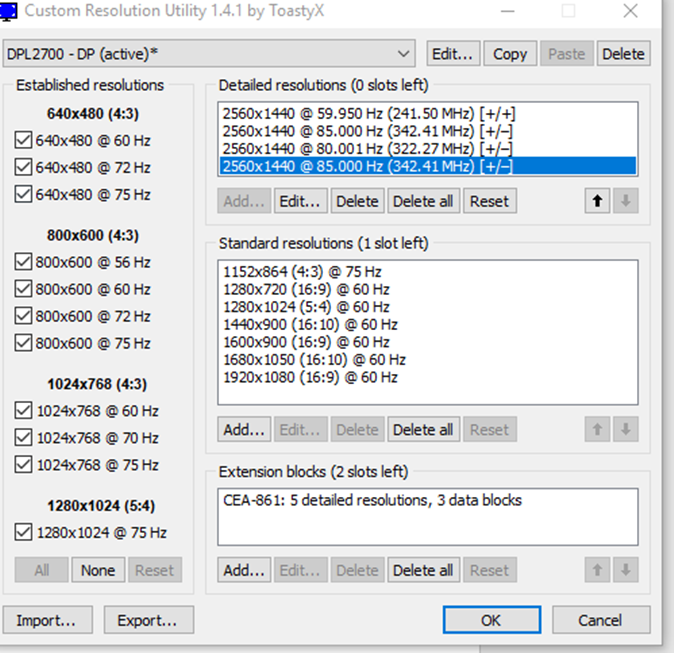
Step 7: Double click on restart64. Your screen will flash and black for a few seconds. This is normal, don’t worry.
Step 8: If your screen supports an 85 Hz refresh rate, you’ll notice an immediately smoother experience. If it doesn’t support this refresh rate, one of a few things will happen. Don’t worry as these simply indicate that you’ll need to dial back the overclock a bit. Follow the next few directions if you encounter any of the following issues.
You might see some pixel sparkling. Even if the image is otherwise stable, individual pixels may “sparkle” when you’re on the edge of a maximum monitor overclock. If you encounter this, it’s advisable to dial back your overclock 1 Hz at a time. To do this, repeat the process from Step 5 onwards. The refresh rate at which you no longer encounter sparkling is your sweet spot refresh rate.
If you’re further past the stability point, you may encounter some color corruption. The monitor will technically work at the higher refresh rate, but colors may become significantly altered onscreen. Drop back by about 5 Hz and see if color corruption or sparkling persist. Keep dropping by 5 Hz increments until they stop.
If you’re completely past your monitor’s refresh rate capability, you’ll simply encounter a blank screen for about 15 seconds. Don’t worry about this. Your computer will restore the last stable refresh rate. If this happens, you’ll want to drop your refresh rate by 5-10 Hz, then try again.
With a bit of experimenting, you will be able to get to your sweet-spot refresh rate. This varies from monitor to monitor. My old 22.5 in TN panel monitor topped out at 83 Hz, while my Korean VA panel manages 85 Hz. You may get better or worse results, it’s entirely down to your monitor’s capabilities.
However high you’re able to overclock it, though, your monitor will deliver an experience that’s noticeably better than your stock refresh rate. This is one of those things that can feel a bit subtle after a while. But go back to 60 Hz and you’ll feel like choppy again.
Read: Use Android and iPad as a External Monitor for your DSLR
