Amazon does not accept PayPal, for obvious reasons. But there are times when you want to buy that Christmas present on Amazon from the money you just received in your Paypal.
One way around is to use a Paypal debit card, but that only works when your Paypal account is linked to the United States.
Thankfully, there is another workaround, which lets you use the money you have in your PayPal account to purchase anything on Amazon.com. Useful in situations when you are not able to use your credit card or debit card on Amazon or when you just received a payment on PayPal and don’t want to wait for few days for it to get credited to your account.
The trick here is to buy an Amazon gift card using the money you have on PayPal and later use that Amazon gift card to purchase from Amazon. Let’s see how it work.
Read: Patreon vs Paypal: Which is Better to Receive Donations?
How to Use Paypal on Amazon
Step 1: Find a gift card website
To avoid promoting their competition, you will not find Amazon gift card on big online stores like Target or Bestbuy. So you will have to look at small players.
Now, we don’t endorse any gift card sites, however, we have used MyGiftardSupply and it works like a charm for us in our previous experience. eGifter is another popular site to buy gift cards, however, at the moment, it only sells Amazon gift card when you use eGifter Points as a payment source.
Unlike Target or Bestbuy, small coupons like MyGiftcardSupply sites will charge you a little extra for the service. For example, a $100 card will cost you $107.
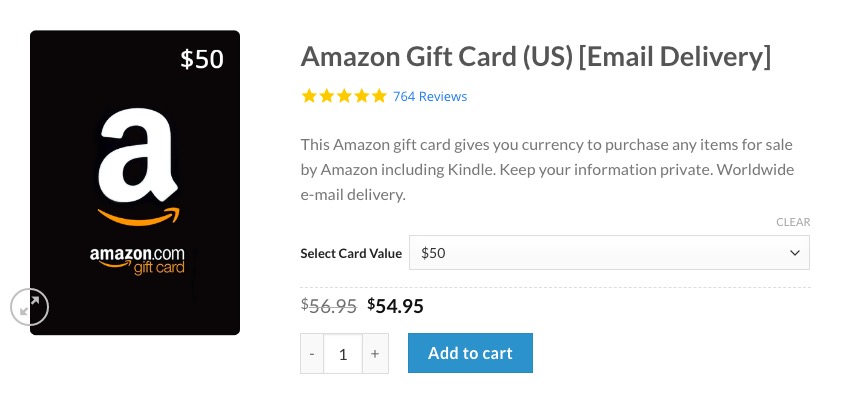
Step 2: Purchase Amazon gift card
So, head over to mygiftcardsupply.com (you don’t need a US credit card or Paypal to buy a gift card for them). Search for Amazon Gift card. Sometimes the gift card doesn’t show up when you do a manual search, in that case, you can scroll down for the list of available gift cards and add Amazon gift card to your cart.
You can select the card value from $5 to all the way up to $100. At the moment of writing this article, the $5 will cost you around $7, while the $100 will cost you $107. You might be tempted to get the better deal i.e. $100, however, I’ll recommend you do an initial the transaction of small amount like $5, to test the waters.
So, add it to your cart and check out with Paypal. You’ll have to enter your Name, Email and Verify your phone number. There is no option for guest checkout, which is a good thing since we are dealing with actual money here.
Once done, you’ll get the scanned copy of the code in your email within a minute or two. Sometimes, it sends you the code directly like shown it the following screenshot.
Read: How Much Paypal Charges Per Transaction in India

Step 3: Add gift card on Amazon
This is easy. You can either click on ‘Click to ‘Redeem On Amazon’ button to directly add the gift card balance as shown in the screenshot below. Or you can do it manually, by Sign in to amazon.com and go to the “Your Account” page by clicking on “Accounts & Lists” to the right of the search bar. On the “Your Account” page select “Gift cards.” Now click “Redeem a Gift Card.” Enter the claim code on the back of the gift card and click on apply claim code.

That’s how you shop on Amazon using Paypal. While it’s not as seamless as PayPal credit card, it gets the job done. Though, you will have to bear the extra few dollars.
Read: Top 5 Amazon Price Tracker Tools
