Ubuntu released its LTS (long term support) variant 20.04, codenamed Focal Fossa on April 24th, 2020. Obviously, if you are on Ubuntu 18.04 or 19.10, you can directly upgrade via the Software Updater (aka Update Manager). For previous distros, you would have to flash the ISO which can be downloaded from the link below.
Download Ubuntu 20.04
Now, the major changes lie under the hood which is the new Kernel, new Desktop, etc. To sum it up, below are the biggest under the hood changes.
- Linux kernel 5.4
- GNOME desktop 3.36
- Improved ZFS support
- Improved Hardware & Graphic support
So, these changes are the key highlights and were already making the buzz since 19.10. These changes would surely benefit in the long run but are not evident as soon as you upgrade. But, there are a lot of cosmetic changes, the addition of utilities, menu optimizations, etc which are visible in plain sight. So, covering all of that here is everything that’s new with Ubuntu 20.04.
What’s new In Ubuntu 20.04 (Focal Fossa)
Most of the changes I mention and the comparisons that I’ll draw are coming from a Ubuntu 19.10 user rather than Ubuntu 18.04. In case you are coming from the previous 18.04 LTS, you will see a lot of bigger changes.
1. Appearance Menu
All the visible changes you would see is, more or less, because of the new GNOME Desktop 3.36. The first evident change would be the dock icons, folder icons, shell, etc. You would also see subtle aubergine within Nautilus, Brightness slider, etc.
But, the whole talk of the town is the gorgeous Yaru theme. To start off, you don’t need to install GNOME tweaks to switch between the default themes. It’s now embedded in the Settings page under the Appearance menu. It features 3 different themes: Light, Standard, and Dark. So, you can now switch to the dark side directly without GNOME tweaks. And that’s awesome!
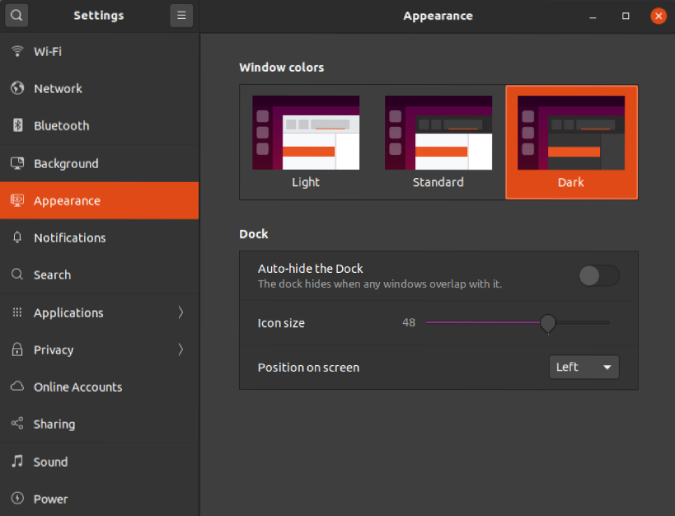
Additionally, you also have the option to scale icons, change the position of the dock, and auto-hide the dock. Finally, you can hide the dock!
2. More Dark Mode
The Appearance menu lets you switch directly to the Dark mode but there are inconsistencies. For instance, similar to 19.10, even in the Dark mode, the shell and pop-ups still say in Light theme. To push them to the dark mode, you have to go back to the GNOME Tweaks. Basically, run the following set of commands.
sudo apt-get install gnome-tweaks
sudo apt-get install chrome-gnome-shell
Next, download the GNOME extension User Themes and change the Shell Theme to Yaru-dark under the Tweaks menu.
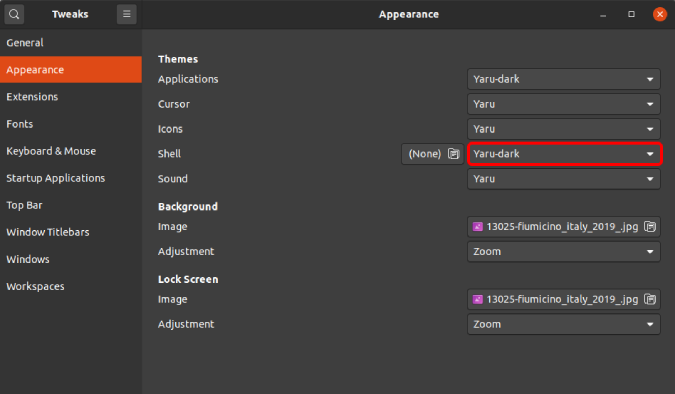
This pushes almost everything from the pop-up, shell, notification pop-ups, etc to dark mode.
3. Extension Manager
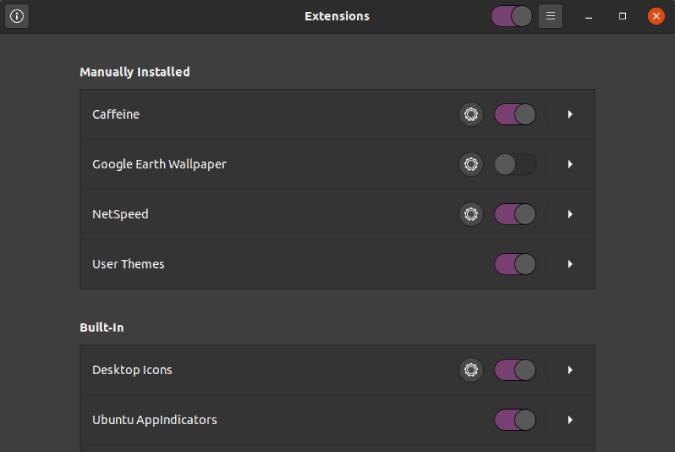
The GNOME extensions manager now comes built-in and you can access it right from the app launcher. I use a lot of GNOME extensions and it’s merely pleasing that I don’t have to install GNOME tweaks to manage them. Although it isn’t that big of a deal, it’s great to see the GNOME extensions getting more appreciation.
4. Application Drawer
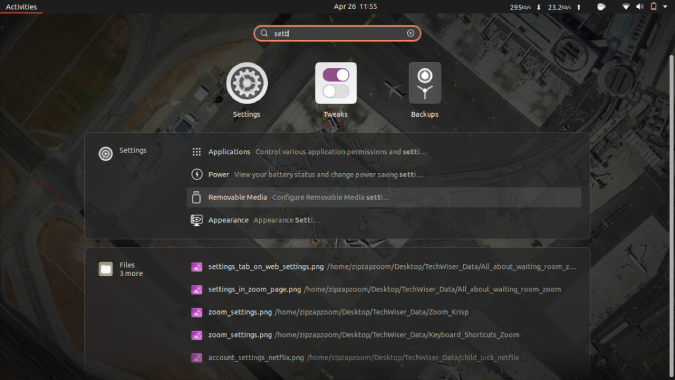
The App launcher has also witnessed subtle cosmetic changes. The most evident one is the smooth scrolling. It’s smoother now instead of being choppy. Moreover, when you search for a particular file, app, or settings, the results appear categorized. All of these have a specific drawer and are far distinguishable at a glance.
5. DND toggle
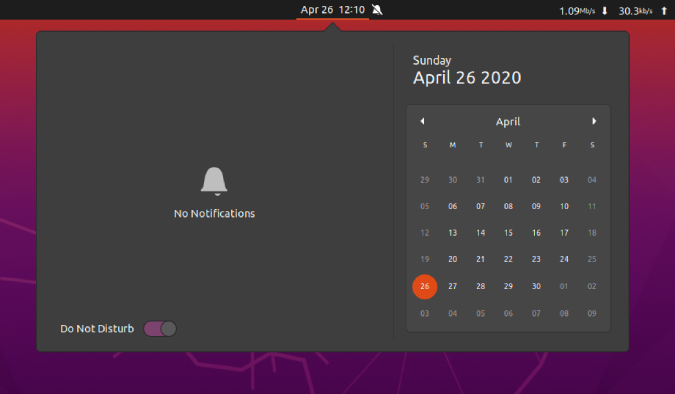
Finally, you don’t have to disable “Notifications pop-up” every now and then to concentrate on your work. We now have a DND toggle. The notification space incorporates a DND toggle at the bottom. Switch it on, and all the notification pop-ups are turned off.
As of now, there’s no option to further customize or set exceptions for DND mode.
6. ExFAT Support
The new Linux 5.4 kernel brings native ExFAT file system support. It’s a piece of good news for people dealing with cameras, SD Card storages, etc. At our workplace, we edit most of our videos on Macbook’s and macOS follows the ExFAT file system. It was a huge pain to interchange data with them.
Previously, I used the exfat-utils utility to deal with this incompatibility. However, in Ubuntu 20.04, this feature comes built-in.
7. Feral’s GameMode
Ubuntu 20.04 comes with a GameMode installed and enabled by default. Now, this GameMode doesn’t have a GUI and is not your usual Game Booster application. It has zero end-user customization options. The daemon simply runs in the background. All you can do is start/stop it via the command-line or check the status
gamemoded -s    -- Check the status of GameMode daemon
gamemoded -run  -- Start the GameMode daemon
gamemoded -stop -- Stop the GameMode daemon
GameMode is a daemon that allows games to request a set of optimizations to be temporarily applied to the host OS and/or a game process. Currently, GameMode provides optimizations for CPU governor, I/O priority, process niceness, kernel scheduler, screensaver inhibiting, GPU performance mode (NVIDIA and AMD), GPU overclocking (NVIDIA) and custom scripts. Following are the games that support GameMode.
Games supported:
- DiRT 4
- Rise of the Tomb Raider
- Total War: Three Kingdoms
- Total War: WARHAMMER II
- Total War Saga: Thrones of Britannia
Another GPU-related change comes in the app launcher. You can now right-click on an app and have the option to “Launch using Dedicated Graphics Card”. It works for both AMD and NVIDIA GPU’s and might handy for people using hybrid graphics.
8. WireGuard VPN
WireGuard is the emerging VPN technology that uses cryptography. Ubuntu has integrated WireGuard VPN into the Kernel itself. This would provide better performance and security. Moreover, the Wireguard VPN would be backported to Ubuntu 18.04 as well. So, even if you don’t upgrade to 20.04, you are still covered. Having said that, this would mostly affect the enterprise users working in the cloud scenario.
9. Fractional Scaling
Fractional Scaling was introduced first in Ubuntu 19.04 but didn’t have a UI back then (X11). Now, it’s baked in the Display settings and you have a GUI. It allows you to scale your display from 100%-200% in increments of 25%.
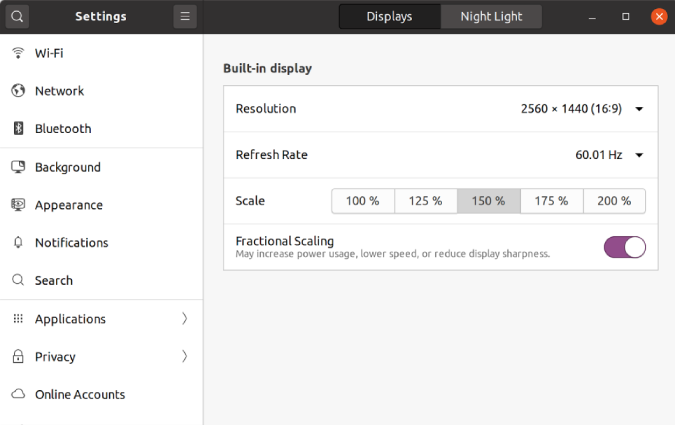
In case you don’t know, fractional scaling, as the name suggests, lets you scale your display slightly by not making it to big or too small. This is highly useful in HiDPI laptops and displays. Now due to this lockdown, I don’t have either of those, so it’s hard to report as of now how useful is this feature. But, as per It’s FOSS, it doesn’t seem to work on a multi-monitor setup and throws a hardware limitation error.
Minor Changes
10. Lock screen
Instead of a different lock screen wallpaper, the current one is just a blurred version of your desktop wallpaper. Additionally, now when you swipe up to enter the login password, the login screen slides up on the same blurred screen.
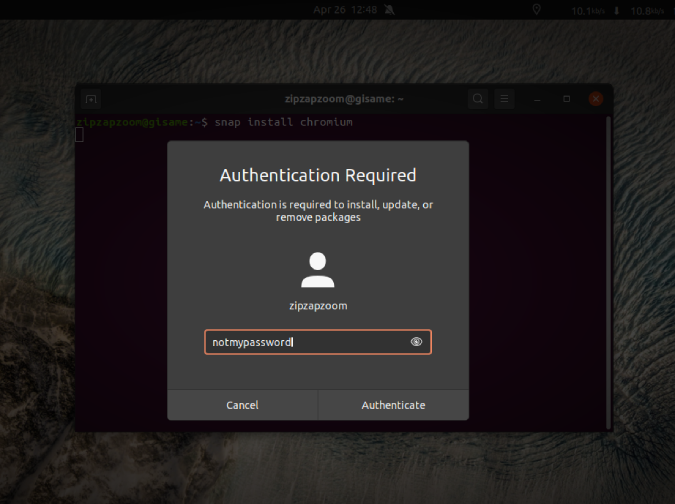
Moreover, on any GUI screen where you enter passwords, there’s a peek-a-boo icon now. Basically, you can click on the icon and see the password you are typing.
11. Power Menu
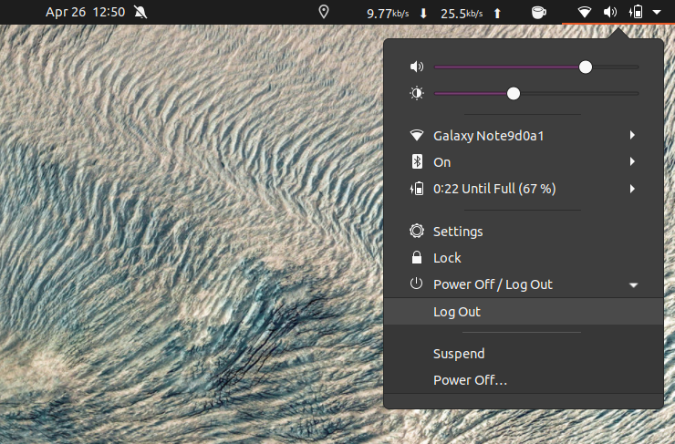
The Power menu, now integrates, a dropdown that incorporates Log Out, Suspend, and Power off options. Well, not a big deal because I mostly use the keyboard shortcut for it. I would have much appreciated a Shut Down, Restart, option instead.
12. Better Fingerprint Support
With an increasing number of laptops coming built-in with Ubuntu, they have addressed the biometric issue. Together with the libfprint project, Ubuntu is improving the backend and the UI (coming soon) of biometric authentication. This makes it possible for hardware vendors to support new biometric devices easily.
13. No Amazon app
Well, not a big deal but gone for good!
14. Python 3
Quite expected after the end of life announcement of Python 2 on 1st January 2020. Ubuntu 20.04, no longer supports Python 2. You have to be content with Python 3 that comes pre-installed with Ubuntu 20.04.
Closing Words
So, this was the summary of what’s new with Ubuntu 20.04. In case you use lubuntu, 20.04 version hasn’t hit shores. As of now, the latest is 19.04. Hence, wait for the 20.04 stable release. Moreover, with Ubuntu 20.04 release, the Ubuntu 20.10 schedule is out. And wait for the codename. *Drum rolls*. It’s Groovy Gorilla!
For more issues or queries, let me know in the comments below.
Also Read: 6 Best Screen Recorders for Ubuntu
