
 Published: October 12, 2026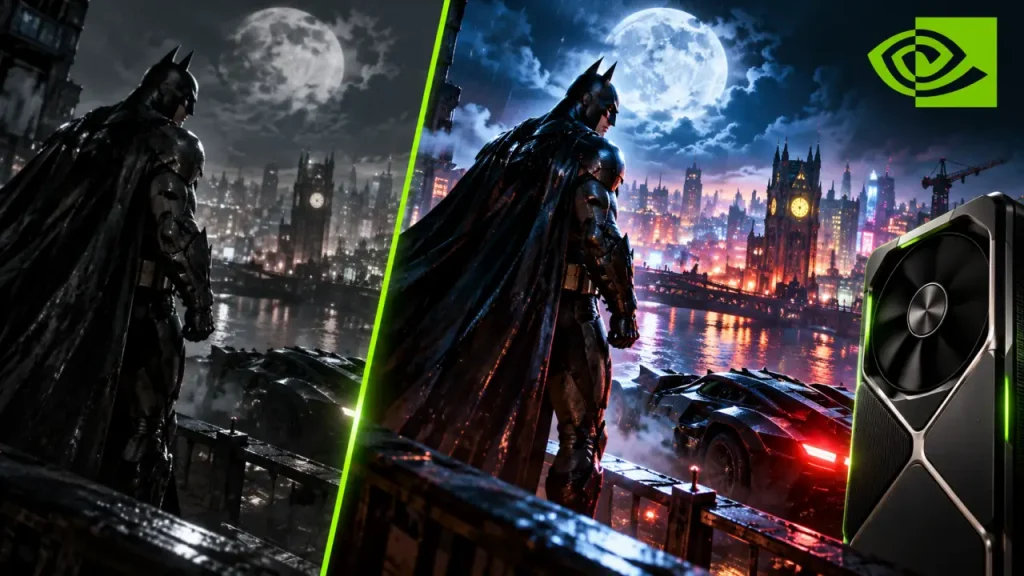

You can install the DLSS 5 mod in many PC games using a community-made tool called DLSS 5 Manager. It lets you add experimental neural-rendering effects to supported games, including older titles like Batman: Arkham Knight, and switch between the enhanced and original visuals. However, there's an important distinction: this method uses an unofficial community mod, not NVIDIA's official DLSS 5 implementation. Compatibility and image quality vary between games, so don't expect every title to work perfectly. Here's how to install and enable the DLSS 5 mod on your PC game step by step.
Before You Install the DLSS 5 Mod
Before you begin, make sure you have the following:
- A Windows PC with a compatible graphics card and driver for the mod components you're using.
- A PC game already installed.
- The latest version of DLSS 5 Manager from its official GitHub releases page.
- An internet connection to download the manager and any required components.
Since DLSS 5 Manager is a third-party tool, download it only from the official repository. Scan the downloaded installer with your security software before running it, and back up important game files first.
How to Install DLSS 5
Follow these steps to install the DLSS 5 mod. We'll use Batman: Arkham Knight as an example, but the process can differ depending on your game and its rendering API.
Step 1: Download DLSS 5 Manager
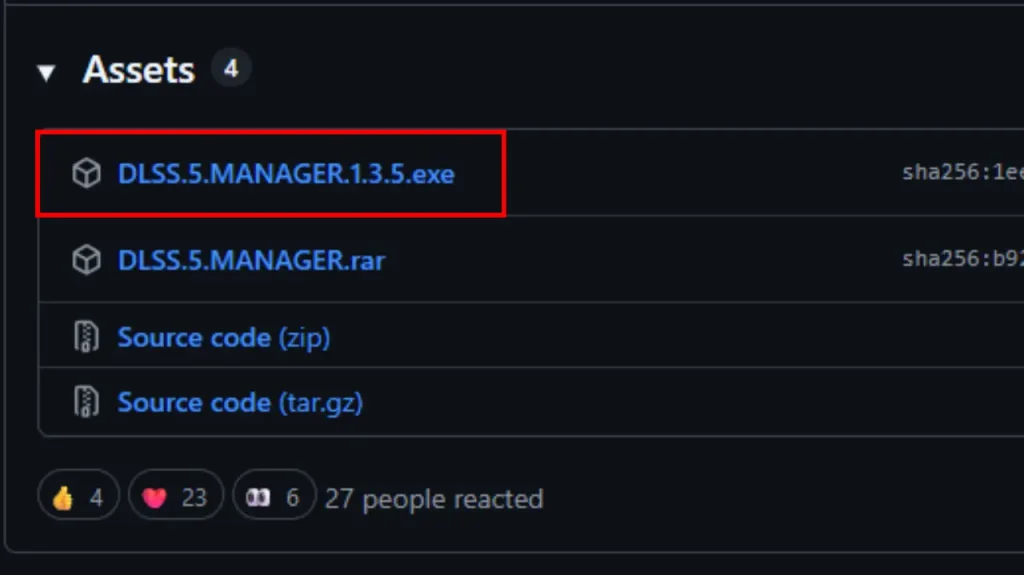
First, open the DLSS 5 Manager GitHub page.
- Open the Releases section.
- Select the latest release.
- Download the Windows
.exeinstaller from its Assets section. - Once the download finishes, run the installer and open DLSS 5 Manager.
The manager will scan your PC for installed games and display them in its library. Don't worry if some games show the wrong cover art; that doesn't necessarily affect installation.
Step 2: Select Your Game
Find the game you want to modify in DLSS 5 Manager and double-click it.
For some games, the manager can detect the required settings automatically. However, older games may need a little manual configuration before you can enable DLSS 5.
Look for the installation options and select the appropriate install mode, executable architecture, and graphics API for your game.
Step 3: Check DirectX Version and Architecture
If you're unsure which settings to choose, check the game's entry on PCGamingWiki.
For example, search for Batman: Arkham Knight and find its API section. This section lists the supported DirectX version and executable information you can use to configure the mod.
Choose the matching options in DLSS 5 Manager. An incorrect API or architecture setting can prevent the mod from loading properly, so don't guess if you're unsure.


Once you've selected the correct options, click Enable DLSS 5 in the manager. Wait for the installation to finish before launching your game.
Step 4: Launch the Game and Open ReShade
Now launch the game through Steam or its usual launcher.
After the game loads, open the ReShade overlay by pressing the Home key. On compact keyboards, you may need to use an Fn combination or change the assigned shortcut.
ReShade provides the interface for configuring the mod's graphics effects. Once the overlay appears, look for the add-on options.
Step 5: Enable Necessary DLSS 5 Effects
Inside the ReShade interface, enable the following options if they appear in your installed version:
- DLSS 5 Feed
- Luminate Kernel 2
Make sure both options are enabled. These components work together in the setup shown in the tutorial.
Next, open Edit Global Preprocessor Definitions and look for the DLSS 5 provider setting. In the tutorial's configuration, you change its value from 0 to 3.


Keep in mind that manager versions and add-on interfaces can change. If your version uses different labels or doesn't show this setting, check its release notes rather than forcing an option that isn't available.
Step 6: Enable DLSS Neural Rendering
You're almost done. Open the RenoDX DLSS NR menu on the right side of the overlay and select Enable DLSS Neural Rendering.

Give the effect a moment to initialize. In the configuration shown in the tutorial, the status line displays Active NR Injected when the mod is working.
If you see that status, the neural-rendering effect has initialized. You can now return to the game and compare the visuals.
Step 7: Switch DLSS 5 On and Off
Use the F6 key to switch between the modded and original visuals.
Press F6 while playing to compare the two modes. If the shortcut doesn't work, check the manager or add-on settings to confirm the toggle key assigned by your version.
This comparison is useful because neural rendering can change lighting, materials, and other visual details. Try different settings to find a balance that looks good in your game.
Will DLSS 5 Mod Work With All Games
Not necessarily. Although DLSS 5 Manager aims to support a wide range of games, compatibility depends on the game engine, graphics API, GPU, driver, and installed mod components. YouTubers have been busy testing DLSS 5 on different games, showcasing how they look with and without it. The results are quite impressive.
Older games may require manual configuration, while some titles might not work at all. You could also notice visual artifacts, unexpected lighting changes, or a performance hit. Treat this as an experimental graphics mod rather than a guaranteed upgrade.
Remember that this community mod is separate from NVIDIA's official DLSS 5 technology. NVIDIA described its official implementation as a neural-rendering technology that uses game-frame data and motion vectors, with integration and controls for developers. Few games support DLSS 5 for now.
Also, avoid testing injection-based mods in competitive games protected by anti-cheat software. They may trigger security systems or violate a game's rules.
How to Uninstall the DLSS 5 Mod
If the game starts crashing or you don't like the visual changes, you can remove the mod.
- Close the game.
- Open DLSS 5 Manager.
- Select the modified game.
- Click Remove DLSS 5 if that option appears.
- Launch the game again to check whether it runs normally.
If problems persist, use your launcher to verify the game's files. For example, Steam's file-verification feature can restore missing or altered original files. Backups can also help you restore any files you changed manually.
The DLSS 5 Manager mod offers PC players a way to experiment with neural-rendering effects in games that might not officially support them. The setup is relatively straightforward when the manager detects your game, although older titles can require additional configuration.
Just remember that this is an unofficial, experimental workaround. Check compatibility before installing it, keep a backup of your game files, and compare the results rather than assuming the new visuals will always look better.


